

A couple of people have asked in a Facebook group how to jump to a section of a web page so I thought I’d write this post to explain it.
The page that I use as an example is on this website that I built : Summerley Recruitment
There are images at the top of the page, with ‘More Info’ buttons configured to jump down to the relevant sections of the page. This is achieved using the method I describe below.

The actual ‘jump’ is quite simple but the result is often not perfect as your page header means that you don’t jump perfectly to the right position on the screen. So I will cover how to offset that too!
I use the Flatsome WordPress theme so will explain how to achieve this in there, but it will work with all other themes too.
Please note: I’m not an HTML or CSS expert, but this solution works for me!
Adding the CSS
The ‘jump anchor’ functionality is set up in the Additional CSS for the website, accessed via ‘Appearance -> Customise’ from the main WordPress menu.
This is the code that I use, which sets up the jump anchor itself and also the offsets for different sized screens:
.jump-anchor {
  position: relative;
}
/* offset for jump anchors */
.jump-anchor a {
  position: absolute;
  left: 0px;
  top: -130px;
  font-size: 0;
}

@media screen and (min-width: 896px) {
  .jump-anchor a {
    position: absolute;
    left: 0px;
    top: -140px;
  }
}
Jumping to a section on a page
On the page where you want to jump to a heading, you’ll first need to identify the section you need to jump to.
Add a heading (e.g. an H2 heading) and then in the native text (where you can add HTML) add a class for the ‘jump-anchor’ like in the example below. You also need to identify the section using an ‘id’ tag.

Add a link to a button
Then, for the button (or hyperlink) that you want to trigger the jump, simply use a hashtag. So for the example above, the link on the ‘More Info’ button would be #pubs.
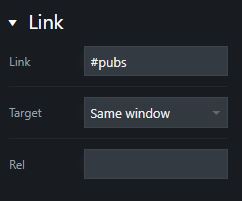
And that’s it!
You may need to tweak the offsets based on the size of your own header section for the website, but that’s not usually too tricky.