

There are so many apps, websites and software applications that we use on a daily basis which make our lives easier and save time. I’ve shared my favourite ones below in case they could help you too – whether you’re a small business owner, run a website, are a keen blogger or write content, there will be something here for you! They are all either free or very cheap, so will work for most budgets.
1. Fotosizer
When I started blogging I learned how important it was to keep my images below 200kb in size, to avoid slowing down the website for my visitors. My blog is very image-heavy as I use it to share photos from scooter rallies, sometimes hundreds in one post! So I needed a great tool for compressing images, but didn’t have a big budget. Fotosizer was recommended in various Facebook groups and it has been perfect for me. It has a free version but I invested in the $16.95 lifetime license to access extra features including watermarking. It compresses images in BULK! So I can choose the size I want them to be (1000px wide is the most common size for my blog images, but they can be smaller in other places, or bigger for banner images) and do them all at once.
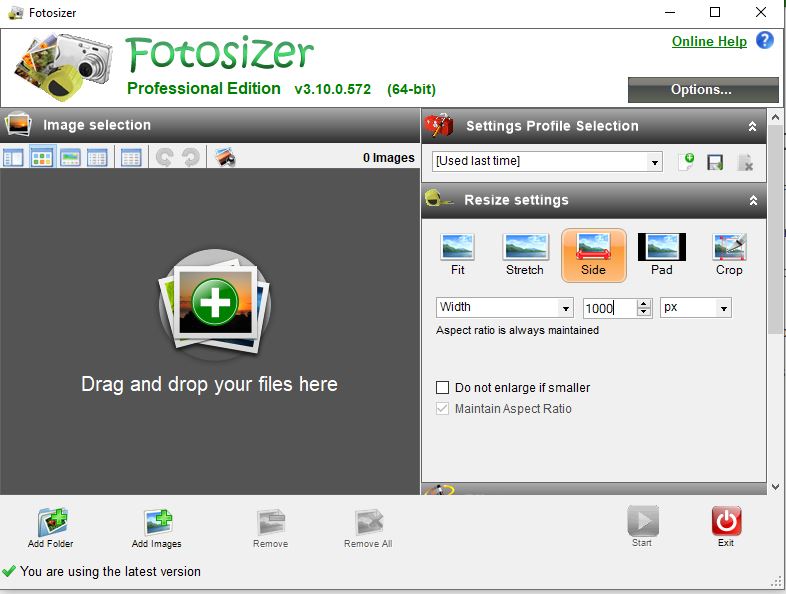
A note of caution – I always retain the original images in one folder and use a separate folder to store the smaller ones, just in case I need the bigger ones for printing or other offline uses. Smaller images are great for website user experience but not great if a magazine wants to print one!
2. Dropbox
Dropbox is a cloud-based file storage system which you can use just like any other folder on your PC, but access it from any device. I use it for most of my photos and files and it’s so easy to organise everything. There are so many times that I’ve needed to view a document or file when I’ve only had my phone on me, and I can do that with Dropbox. But when I’m working on my desktop PC then my files are accessible like any other folder on a network.
The best thing is that if you delete a file by mistake then you can restore it too. You can also configure it to automatically back up the images on your phone, which for me is a Godsend as I’ve got nearly 20,000 on there! I’m not a fan of the iCloud because if you delete a photo from your phone then it’s deleted from the cloud too. I’d prefer to have a permanent copy of all my images stored away and then I know I can confidently delete them from the phone if I need to save some space.
I can also easily share certain Dropbox folders with other members of my team, which is really useful when we are collaborating on something.
Dropbox is free for up to 2gb of storage, but I upgraded to the plus plan so that I can store up to 2 terabytes of data – which is massive! Here’s a link to their plans.
3. Word Hippo
If you write in any form then a thesaurus is a vital tool, and if you use Word then the one which it comes with isn’t very inspiring. I recently discovered Word Hippo and haven’t looked back since! It’s a website which is a great resource for any writer, offering a comprehensive list of synonyms for every derivative of a word.
What’s more, it will give you words which rhyme with your word, all the antonyms (opposites) and will put the word into a sentence for you too!
4. Moz
Moz Link Explorer is a resource for helping with SEO, or search engine optimisation. The main service that I use is to track my DA, or domain authority which is a measure of how important search engines think your site is. Although Google doesn’t use this DA directly, it is a great indicator of how you compare with other sites in your niche, and gives you an idea of why you may or may not rank above them. Although there are a host of other ranking factors, it’s one which is measurable and you can see how it changes over time. And of course, you can check out the competition too!
You can do up to ten checks per month with a free Moz login, or subscribe for more. The free plan is enough for me, and it also supplies information about which websites link to me, the top anchor links and lots of other useful data. It can all be exported to a CSV file too, to review offline.
5. Zapier
I’d heard about how useful Zapier can be in a podcast but didn’t use it myself until a couple of months ago – and now I’m hooked! Zapier is a no-code tool which allows you to connect and automate different applications. For example, you can save email attachments in Dropbox automatically, something I find really useful for business expense receipts. You can hook so many applications together, including Gmail, Slack, Google Forms, Facebook, Instagram, Twitter, Pinterest, Trello and so many more.
What has saved me the most time though is that I have created a form on my website for my husband to use to log the jobs he completes as a self employed automatic door engineer. This data is then sent automatically into a spreadsheet so that at the end of the week it’s really quick for me to then create his invoice. It saves me precious weekend time which I can spend doing something less boring than his bookkeeping!
I’ve also set up an SMS reminder to myself of approaching Google Calendar events. Although I do get email and phone notifications, I wanted something which would make my Apple Watch vibrate as I’m prone to get distracted and not always check my phone. This zap is brilliant as it reminds me when a meeting or other appointment is about to start.
There is a free plan with Zapier, which allows up to 100 automated tasks per month, which is plenty for me. You don’t need to be a developer to use it and can get up and running really quickly.
6. Pixloom and Remove.bg
When I’m building websites something I need to do regularly is to remove the background of an image. It could be a product photo, or it could be a profile photo where you want to isolate just one person in a group. I have a few resources for doing this which save hours of time in Photoshop; Pixloom, Canva and Experte.com’s tool.
If you have a Canva Pro subscription (or are using their free trial version) then their background remover is really good, and instant.

The guys at Experte.com have developed a free background remover tool, which is even free for high-res images. It’s not perfect but it gives pretty good results.
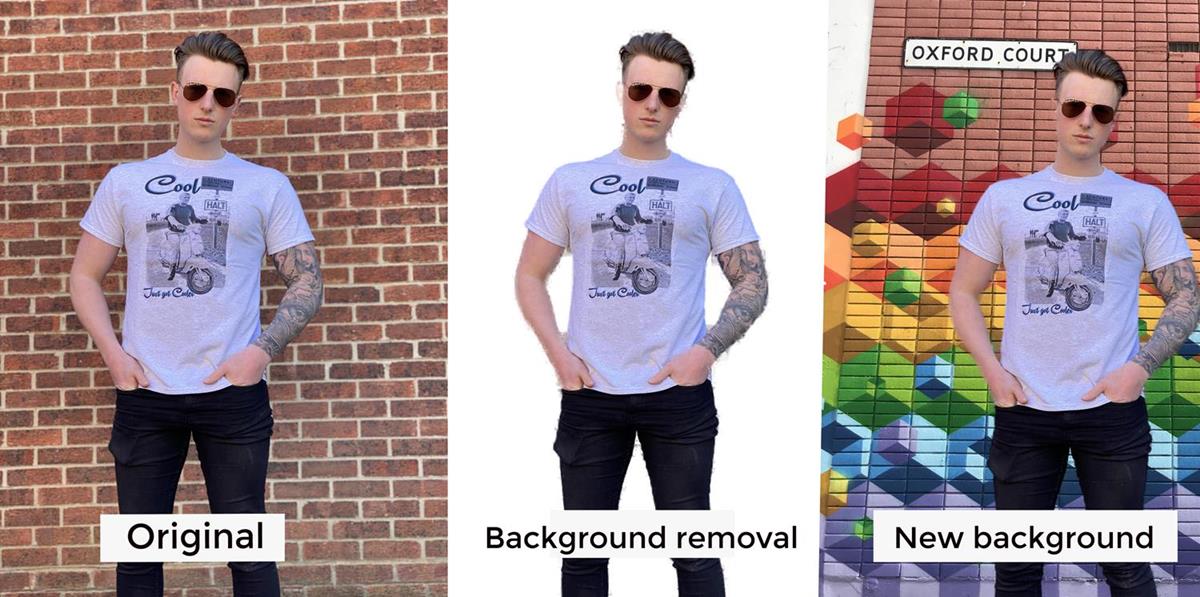
Pixloom, on the other hand, is a service where you upload your image(s) and they do the background removal and send the result back to you. It costs from just $1 per image, and is usually done within 24 hours, often much quicker. I’ve used it a few times and the results were sent back within a few hours. Images of products cost £1 and removing the background from photos of people costs $3, which is still excellent value as hair can be a nightmare to isolate in graphics software. What’s more, they can do other adjustments. For a product image I had, which included a hand holding the product, they removed the fingers and returned a complete product – very clever! I also really like their option to add a shadow which works really well for many types of image, especially products.
7. Food Blogger Pro Podcast
Before I go any further please don’t be fooled by the name; the Food Blogger Pro podcast is incredibly useful for any digital business, not just bloggers and definitely not just food bloggers.
It’s fair to say that I wouldn’t have started my own business without the advice I’d listened to on this podcast. Bjork’s words of wisdom and all the incredible guests have taught me so much about every aspect of running a modern business. From productivity and marketing to practical tips for optimising my website. They cover social media marketing, SEO and many other subjects, and include the highs and lows of what it means to run a digital business. Each new episode is available on a Tuesday, but there are over 200 in the archive to catch up on if you’re new to it.
8. Emojipedia
Emojis are a part of everyday life now and when you’re posting something on Facebook or writing a text on your phone then it’s easy to pick the one you want. However, if you’re using a laptop to compose a message, or like me writing a social media post for one of my clients, then emojis are slightly harder to include as they aren’t in the standard Word application or whatever you’re using to draft the content. That’s where the Emojipedia website comes into its own, as you can search for emojis and copy them into your content.
Their search is great and offers loads of different options for a particular keyword. 😊 ❤️✔️
9. WeTransfer
There are many times when I’ve needed to send someone a large file. It could be a collection of photos or a video, which would be too big to email. WeTransfer is a brilliant website where you can send data securely, and it’s ideal for large files. You can send up to 2gb for free, or upgrade to the premium plan where you can store up to 1tb of data and send larger files.
You are notified by email when the recipient has downloaded the file(s) and also if they haven’t downloaded them, which is very useful. It gives you time to send them a quick message to see if they still need the files. After a set period of time if the files aren’t collected then they are removed.
10. Zoom
It’s weird because before the pandemic I’d only used Zoom a handful of times, but since then – like most people – it’s become a normal part of my working day. I used to hate video calls but now love them, and prefer them to an audio-only experience, as it connects me with clients in a much more personal way. Yes, I often get the ‘YOU’RE ON MUTE!’ issue, and there have been times when I can’t get my audio or video to work, but generally it’s pretty good.
The free plan allows up to 40 minutes for a group meeting, but unlimited time for a 1 : 1 session. With Zoom you can share your screen too, and do all sorts of fancy stuff as it connects to many other applications including Zapier, Google Calendar and Slack.
Working from home could be isolating but with Zoom I’m always connected to real people when I want to be, but without the time, cost and hassle of a commute!
11. Milanote
And finally, a quick shout out for Milanote! Milanote is a tool which allows you to assemble mood boards, projects, just about anything you like onto a virtual space to organise them. I used it when I was designing my new office as a place for my ideas. If you’re brainstorming something, or creating a storyboard, then it’s the perfect tool for your ideas. You can try it out for free and here’s a link.
What are your favourite apps and business tools? I’d love to find out so please leave a comment with the best ones!